
UC Browser-Safe, Fast, Private
UCWeb Singapore Pte. Ltd.Communication
4.4174.38K Reviews
- Version
- Varies With Device
- Installs
- 1.00B
- Age Rating
- Everyone
Screenshots
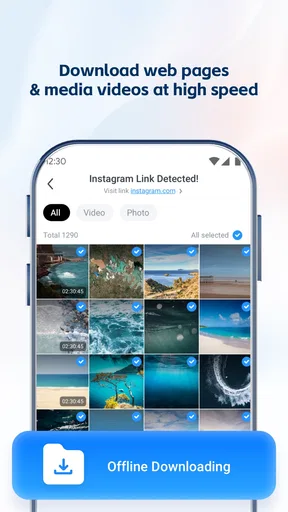
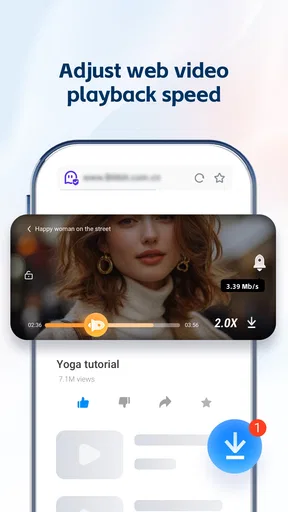
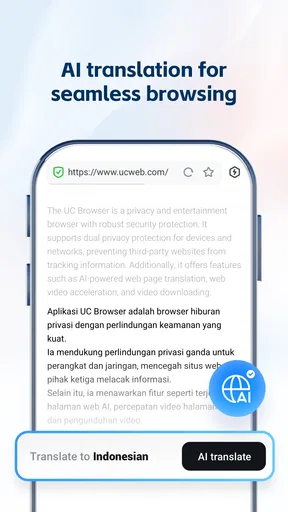
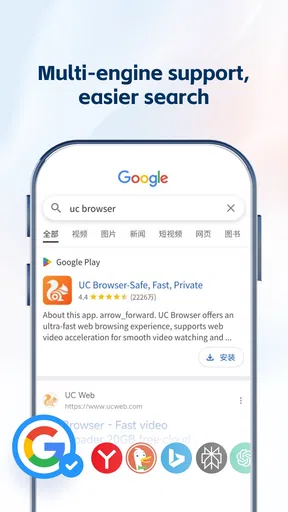
Our Review of UC Browser-Safe, Fast, Private
 Analysis by Appyee
When my connection changes from reliable Wi-Fi to a weak mobile signal, the browser matters as much as the page I’m trying to reach. I judge UC Browser-Safe, Fast, Private by those everyday moments: whether it feels manageable on a phone, how it handles interruptions, and whether its extra tools are useful enough to justify choosing it over a familiar alternative.
When the network is doing the work
Browsing speed is never just about the browser; the site, signal and phone all play a part. In my experience, UC Browser can feel responsive on ordinary pages, but a heavy site or unstable connection can still make a wait unavoidable. That distinction matters if you are deciding whether to switch: a browser may streamline the trip to a page, but it cannot make a poor network dependable.
The app is developed by UCWeb Singapore Pte. Ltd. and sits in the communication category, though most people will use it as a mobile web browser rather than as a messaging tool. It is free to install, with in-app purchases listed at $0.10 to $99.99 per item. That makes trying it relatively straightforward, but I would still look carefully at any purchase prompt before tapping through.
A practical way to judge its performance is to revisit the same kinds of pages you normally use: a news article, a search result, and a site with lots of images. If one page feels slow, compare it again on a steadier connection before blaming the browser. This simple check helps separate a temporary network problem from a recurring browsing annoyance.
Built for phone-sized routines
On a phone, small conveniences can matter more than headline claims. UC Browser’s home-screen customization gives me a chance to keep frequently used destinations close, while the QR scanner can save a detour when a code opens a web page. I would use that scanner for a menu or a notice, then check the destination before entering personal details; the convenience of scanning should not replace ordinary caution.
Night Mode is another feature that fits a particular routine: reading in a dim room when a bright screen feels uncomfortable. It can make the interface easier on the eyes, though it is not a substitute for adjusting the phone’s overall display settings. I would treat it as a comfort option, not a promise that every page will look exactly the same after switching modes.
The built-in video player may appeal if you often watch clips while browsing and prefer not to jump between apps. Still, a browser player is not automatically better for every video. If playback behaves oddly or a site relies on its own controls, using that site’s player—or a dedicated video app—may be less frustrating. The useful question is whether the browser keeps your usual routine simple, not whether it replaces every other app.
What happens when a page stalls
A dropped connection can leave a page partly loaded, a form unfinished or a video interrupted. I would avoid entering important information into a form until the page is stable, and I would copy longer text before submitting it. That habit is useful in any mobile browser, especially when moving between Wi-Fi and cellular service, because a reload can discard work.
If a page does not behave as expected, I would first reload it once on a stable connection, then try a simpler version of the site if one is offered. Turning off an ad-blocking feature temporarily can also help diagnose a page that depends on scripts or embedded content, although I would only do that for a site I trust. The point is to troubleshoot deliberately rather than assume every failure is caused by the browser.
UC Browser includes an ad blocker, and I found it useful for reducing many intrusive interruptions, but it is not a guarantee that every advertisement disappears. Some sites may also rely on advertising or scripts for parts of their layout, so a cleaner page can occasionally lose a function. If a page breaks, allowing its content temporarily is a reasonable test; leaving protections disabled everywhere is a different choice.
Saving data without assuming too much
The browser’s data-compression approach is intended to reduce the amount of data used while loading pages. That could be helpful if you browse on a limited plan, but the effect will depend on what you open and how each site is built. Image-heavy pages, video and other media can still use substantial data, so I would not treat compression as a replacement for checking usage in the phone’s own settings.
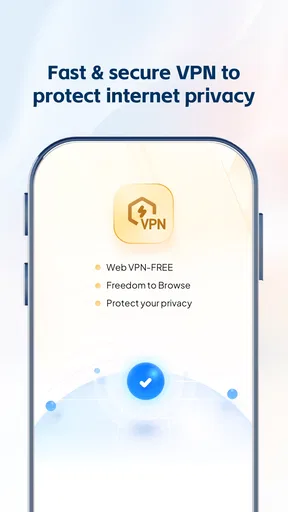
For a data-conscious routine, I would save video viewing for Wi-Fi where practical and avoid repeatedly refreshing a page that is already struggling to load. Those choices are more dependable than expecting a browser setting to solve every data concern. If you use a VPN feature, remember that routing traffic differently can affect the browsing experience; test the sites and services you rely on before making it part of an everyday workflow.
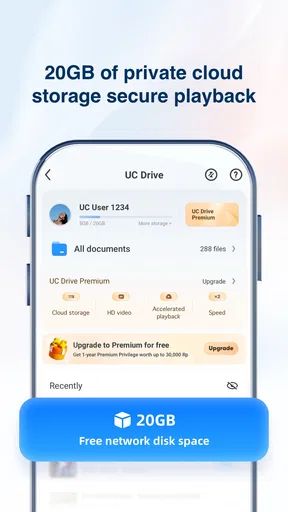
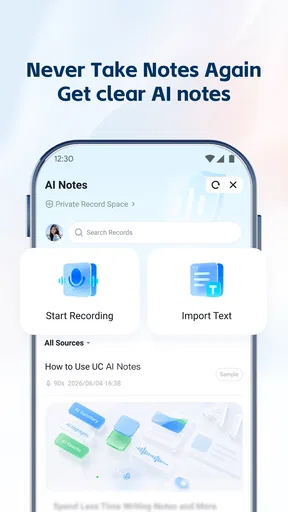
The app’s summary highlights a fast VPN, AI and UC Drive, but those labels alone do not tell me how each tool will fit a particular person’s habits. I would explore them one at a time, check any settings and prompts, and keep sensitive tasks in a browser whose privacy approach I already understand. That is a more useful way to assess optional tools than enabling everything immediately.
Trying UC Browser in everyday use
I’d approach UC Browser as a browser to test against the pages and routines I actually use, rather than judging it by a speed claim alone. Its home-screen shortcuts, QR scanner, ad blocker, and Night Mode address different small tasks, so I’d try each only when it fits my habits. That makes it easier to see whether its bundled tools are genuinely convenient or simply more than I need.
A commute, a short break, and a weak signal
Picture checking a local update during a commute, opening a QR code at a café, and later reading a longer article at home. UC Browser can bring those jobs together: the scanner handles the quick handoff from a printed code to a page, home-screen shortcuts reduce repeat navigation, and Night Mode can make evening reading more comfortable. If the connection falters between stops, though, I would wait for a steadier signal before relying on a page for a booking or payment.
This is the kind of everyday use where the browser’s extras can feel more relevant than a feature checklist. A person who spends much of the day on a phone, switches between networks, and wants a customizable start screen may appreciate having these tools in one place. Someone who mostly opens a few bookmarked sites and values a very familiar, minimal interface may find a standard browser simpler.
How it compares with familiar browsers
Compared with the usual mobile browsers, UC Browser’s appeal is its mix of customization, an ad blocker, media tools and options such as a VPN and cloud storage. A mainstream browser that is already closely integrated with your phone or desktop may be the better choice if syncing and a consistent experience across devices are your priorities. I would choose based on the task: UC Browser for trying its bundled conveniences, or a familiar alternative when continuity and established habits matter more.
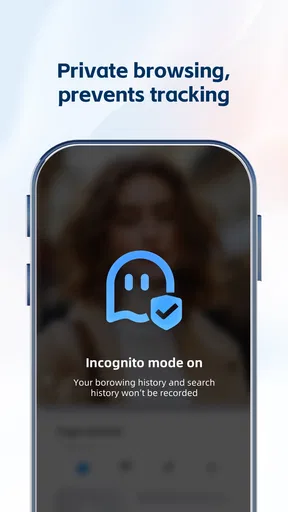
Privacy deserves a separate decision rather than a quick verdict. Incognito mode is useful when you do not want a browsing session added to ordinary local history, but it should not be mistaken for complete anonymity. The browser has also faced scrutiny over data privacy in the past, so I would not use a private-browsing label as a reason to enter sensitive information without thinking. For highly confidential work, I would choose a tool and setup I trust specifically for that purpose.
Who is likely to enjoy it
UC Browser is a reasonable fit for someone who wants more control over a phone browser’s home screen, appreciates a built-in QR scanner, and regularly browses on a connection that is not always ideal. Its long presence in app stores is reflected in a 4.4 average from around 22 million ratings, while more than a billion installs show that it has reached a broad audience. Those figures suggest wide use, not that every feature will suit every person.
I would be more cautious if you want the simplest possible browser, dislike optional tools and prompts, or need a privacy setup that has been carefully evaluated for sensitive work. The app is rated for Everyone and has been available since October 25, 2011; it requires Android 8.0 or later. Those details make it accessible to many users with compatible devices, but they do not remove the need to review how you use its features.
Small choices that make the experience smoother
When setting it up, I would begin with only the shortcuts and appearance options I actually need. A crowded home screen can make frequent tasks harder to find, so adding destinations gradually is more useful than customizing everything at once. I would also test the ad blocker on sites I use often, because a page that looks cleaner is only an improvement if its navigation still works.
For video, I would compare the browser’s built-in player with the site’s own controls before settling into a routine. If captions, playback controls or a page-specific feature matter, the site player may be the more reliable option. For QR codes, I would treat the scanner as a shortcut to a destination, not as a guarantee that the destination is safe. These small checks help the extra features save time without encouraging careless taps.
One common question is whether the browser will make browsing work without a connection. I would not plan around that: the experience described here depends on reaching websites over a network, and a browser cannot fetch a page that the phone cannot reach. Another practical question is whether the free app has costs attached. Installing it is free, but in-app purchases are available, so I would review the price shown for any item before confirming it.
Connectivity verdict
For me, UC Browser is most appealing when its phone-focused extras solve real small inconveniences: reaching a frequently used site quickly, scanning a code, or reducing some disruptive ads. It can be a useful everyday browser, but it is not a cure for weak reception, and its privacy tools should be understood as limited features rather than a blanket guarantee.
If your priority is a customizable browser with several built-in conveniences, it is worth trying on a compatible device and judging it against the pages you actually visit. If you value a minimal interface, close integration with another browser ecosystem, or a carefully controlled privacy workflow above all else, a different option may suit you better. I would keep the features that genuinely help, check prompts before accepting them, and let the quality of your own everyday connection—not a broad promise—decide whether it earns a place on your phone.
First Impressions and Setup
Firing up UC Browser-Safe, Fast, Private for the first time, I was greeted with a clean and intuitive interface. It’s pretty slick. The app is lightweight, which means you’re not waiting forever for it to start up. Right off the bat, you’re asked about some permissions. They’re pretty standard, but always a good idea to glance over what you’re agreeing to.
Downloading and installing it was a breeze on my Android device, and I hear it’s just as seamless on iOS. There’s no fuss, no muss — just straight to business. Plus, it’s free, which is always a sweet deal.
Speed and Performance
Speed is one of UC Browser’s selling points, and I gotta say, it delivers. Pages load up in a snap, even with my sometimes spotty Wi-Fi. The secret sauce here is its data compression technology, which means you’re using less data while still getting where you need to go online. It’s especially handy if you’re on a limited data plan.
There's this nifty feature called "Cloud Boost" that helps with faster loading times. I tested it on some media-heavy sites, and it made a noticeable difference. Videos streamed with minimal buffering, which is a blessing for all the binge-watchers out there.
Privacy Features
Now, let’s talk privacy. In a world where online security is a hot topic, UC Browser claims to keep your browsing safe and private. It has an incognito mode, which is pretty standard these days, but it’s nice to have. This mode ensures your history isn’t stored, which is a win for all the privacy-conscious folks.
The browser also offers an ad blocker. I mean, who loves pop-ups? Exactly, no one. During my use, it successfully blocked most of the intrusive ads, which was a welcome relief. However, I did notice a few sneaky ones slipping through occasionally.
One thing to keep in mind is that while it offers some privacy features, UC Browser has faced scrutiny in the past regarding data privacy. So, it’s always good to stay informed and cautious.
User Experience and Customization
Navigating the app is buttery smooth. It’s very user-friendly, which makes it a great option for tech novices and pros alike. You can customize it to your heart’s content. Themes, shortcuts, and even the home screen can be tailored to fit your style. I had a blast tweaking things to my liking.
Another handy feature is the "Night Mode," which is a godsend for late-night browsing. It’s easy on the eyes and helps reduce that pesky blue light.
Extra Bells and Whistles
UC Browser isn’t just about getting you from point A to B quickly and safely. It has a few extra tricks up its sleeve. There’s a built-in video player, which supports a range of file formats. No need to switch apps to watch a downloaded clip. It also has a "Facebook Mode" that enhances your experience on the platform by speeding up load times.
I also appreciated the "QR Code Scanner" built right into the browser. It’s a small touch, but it saves time when you need to scan codes on the fly.
Final Thoughts
So, is UC Browser-Safe, Fast, Private worth your time? If you’re looking for a fast, customizable browser with some handy privacy features, it’s definitely worth checking out. It’s not without its quirks, like any app, but the pros outweigh the cons.
While it’s a solid choice for everyday browsing, always keep privacy considerations in mind. Use it wisely, and it could be a great addition to your digital toolkit. Happy browsing!
Privacy and Permissions
See what permissions an app requests and how it handles your data.
- Device & app history
- retrieve running apps, read your Web bookmarks and history
- Identity
- find accounts on the device, add or remove accounts
- Contacts
- find accounts on the device
- Photos/Media/Files
- access USB storage filesystem, read the contents of your USB storage, modify or delete the contents of your USB storage
- Storage
- read the contents of your USB storage, modify or delete the contents of your USB storage
- Camera
- take pictures and videos
- Microphone
- record audio
- Wi-Fi connection information
- view Wi-Fi connections
- Other
- view network connections, create accounts and set passwords, pair with Bluetooth devices, access Bluetooth settings, change network connectivity, allow Wi-Fi Multicast reception, connect and disconnect from Wi-Fi, delete all app cache data, disable your screen lock, expand/collapse status bar, measure app storage space, full network access, close other apps, change your audio settings, make app always run, run at startup, reorder running apps, set wallpaper, draw over other apps, use accounts on the device, control vibration, prevent device from sleeping, modify system settings, toggle sync on and off, write web bookmarks and history, install shortcuts, uninstall shortcuts, Google Play license check
How UC Browser-Safe, Fast, Private Compares
Full ComparisonUC Browser suits users who want add-ons and customization, Opera is the strongest all-round choice for ad blocking and a built-in VPN, and Opera Mini is geared toward lightweight browsing and saving-
| App | Developer | Rating | Price |
|---|---|---|---|
 UC Browser-Safe, Fast, PrivateThis App | UCWeb Singapore Pte. Ltd. | 4.4 | Free |
 Opera: Private Web Browser | Opera | 4.8 | Free |
 Opera Mini: Fast Web Browser | Opera | 4.6 | Free |
Verdict
Strengths of UC Browser-Safe, Fast, Private
- Fast page loading times.
- Built-in ad blocker.
- Customizable interface.
- Data-saving features.
- Multiple add-ons available.
Limitations of UC Browser-Safe, Fast, Private
- Occasional pop-up ads.
- Some privacy concerns.
- Limited extension support.
- Resource-intensive on devices.
- In-app notifications can be intrusive.
Similar Picks in This Category
View All
Google Messages
Google LLC4.6

Gmail
Google LLC4.1

Google Meet
Google LLC4.4

Google Chrome
Google LLC4.1

WhatsApp Messenger
WhatsApp LLC4.6

Carrier Services
Google LLC4.2
You May Also Like
View All
Frequently Asked Questions
What makes UC Browser stand out from other mobile browsers?
UC Browser is renowned for its speed and efficiency, utilizing cloud acceleration and data compression technology to enhance browsing speed. It also offers a seamless browsing experience with features like ad-blocking, night mode, and customizable themes. These attributes make it a popular choice for users who prioritize speed and a clutter-free interface.
How does UC Browser ensure user privacy and security?
UC Browser has implemented several security measures to ensure user privacy. It includes an incognito mode for private browsing and features that protect against malicious websites. The app also provides regular security updates to address potential vulnerabilities, making it a reliable option for users concerned about their online safety.
Is UC Browser compatible with all types of websites and media?
UC Browser supports a wide range of web standards and media formats, ensuring compatibility with most websites. It offers smooth video streaming and audio playback, backed by its cloud technology which optimizes media loading. However, some advanced web features might not work as seamlessly as they would on browsers like Chrome or Firefox.
Does UC Browser consume a lot of data?
One of the key features of UC Browser is its data-saving capability. The browser's data compression technology significantly reduces data usage, making it an excellent choice for users with limited data plans. It provides detailed data usage reports, allowing users to monitor and manage their consumption effectively.
Can I sync my bookmarks and browsing history across devices with UC Browser?
Yes, UC Browser offers a cloud sync feature that allows you to synchronize bookmarks and browsing history across multiple devices. By logging into your UC account, you can access your personalized browsing data anytime, ensuring a consistent experience whether you're using a smartphone, tablet, or desktop.
